
It’s possible you already have this set up.
And if you do, great. You’re ahead of the curve.
But if you tried this a while back and quietly abandoned it because it felt clunky, unreliable, or just not worth the effort… you weren’t wrong.
For a long time, this was one of those “nice idea, poor execution” features.
The kind of thing you try once, shrug, and never touch again.
But lately, something has changed.
The weird quirks are starting to fade away.
And more importantly… it’s crossed a line.
It’s no longer just a feature that exists.
It’s a feature that’s actually usable.
The Problem We All Just Accepted
If you use an iPhone and a Windows PC, you’ve probably been living with this for years without even thinking about it.
Text comes in? Grab your phone.
Call rings? Grab your phone.
Notification pops up? Grab your phone.
Over and over again, all day long.
It becomes second nature.
You don’t question it.
You just accept that your computer and your phone live in two completely different worlds.
Meanwhile, Mac users have been sitting there replying to texts from their laptops, answering calls without touching their phones, and generally acting like this is all completely normal.
And if you’re on Windows, it’s easy to just assume:
“Yeah… that’s just how it is.”
But that assumption is starting to get outdated.
Windows Is Quietly Catching Up
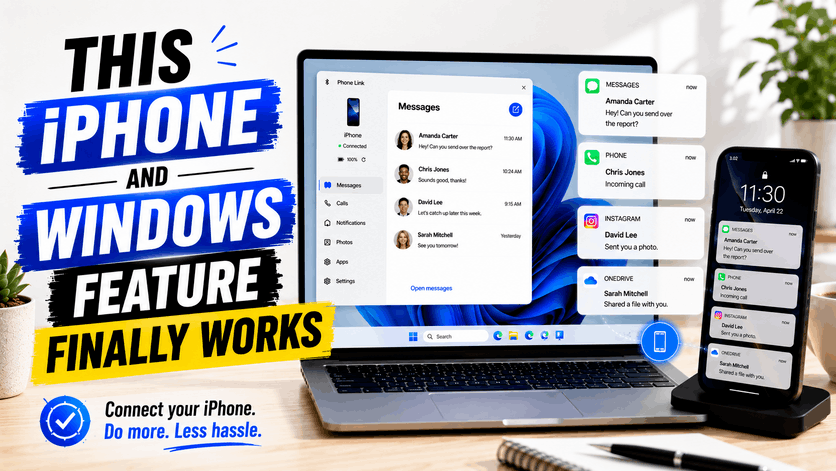
Microsoft has been working on bridging this gap for a while through their Phone Link app inside Windows 11.
If you’ve never touched it, or only tried it once years ago, here’s the short version:
It connects your phone to your computer so you can interact with it without picking it up.
That’s the idea, anyway.
In the past, the experience was… hit or miss.
Connections would drop. Messages wouldn’t sync properly. Notifications would show up late, or not at all.
It wasn’t terrible.
But it also wasn’t good enough to rely on.
So most people ignored it.
And honestly, that made sense.
But over time, Microsoft has been refining it.
Not in a flashy, headline-grabbing way.
Just quietly improving stability, reliability, and consistency.
And now, for iPhone users in particular, it’s finally reached the point where it’s worth revisiting.
What It Actually Does (And Why It Matters)
At its core, Phone Link lets your Windows PC act as an extension of your iPhone.
You can:
- Take and make phone calls directly from your computer
- Send and receive text messages
- See and interact with your phone notifications
That doesn’t sound groundbreaking on paper.
But the value isn’t in the features themselves.
It’s in what those features remove.
Friction.
Every time you reach for your phone, you’re breaking your workflow.
Even if it only takes a few seconds, it adds up.
And more often than not, it doesn’t stay a few seconds.
The Real Problem Isn’t Your Phone… It’s What Happens After
Let’s be honest about what actually happens.
You pick up your phone to answer a text.
Then you see an email notification.
Then you check that.
Then you open an app for a second.
Then something else grabs your attention.
And suddenly, you’ve been off-task for 10 minutes.
It’s not a discipline issue.
It’s a design issue.
Phones are built to pull your attention in and keep it there.
So every time you pick it up, you’re stepping into that environment.
Phone Link changes that dynamic.
Instead of going to your phone, the important stuff comes to you.
On your terms.
Inside your workflow.
You respond, you move on, and you stay where you were.
That’s the difference.
A Small Shift That Adds Up Fast
Individually, each interaction is tiny.
A quick reply here. A missed call there. A notification glance.
But multiply that across a full workday.
Then across a full week.
You start to see how much time is being chipped away in small, invisible pieces.
This is one of those rare tech tweaks that doesn’t feel dramatic…
But quietly makes your day smoother.
Less context switching.
Less distraction.
Less friction.
More continuity.
For Mac Users (Yes, You Too)
If you’re used to the Apple ecosystem, none of this is new.
You’ve had iMessage on your Mac. Calls routed through your laptop. Notifications syncing seamlessly.
It’s been part of the experience for years.
And to be clear, Windows isn’t fully matching that.
Apple still keeps its ecosystem tightly controlled, and certain features simply don’t translate over.
But here’s the important part:
The gap is smaller than it used to be.
A lot smaller.
If you prefer Windows for work, whether it’s for software compatibility, cost, or just personal preference, you’re no longer giving up as much as you used to.
You can keep your iPhone and still get a connected experience that feels… normal.
Not perfect.
But finally practical.
The Catch (Because There’s Always One)
This isn’t a perfect solution.
And it’s important to set expectations correctly.
There are still limitations, mostly due to Apple’s restrictions:
- No group messaging support
- No sending photos or videos through texts
- Messages aren’t fully synced like iMessage (they’re session-based)
- Requires a stable Bluetooth connection
If you’re expecting a full Apple-style ecosystem on Windows, you’ll be disappointed.
That’s not what this is.
But if your goal is to reduce friction and stay focused, it does the job.
And it does it well enough now to matter.
Why Most People Still Haven’t Tried It
Here’s the interesting part.
Even though this has improved significantly, most people still aren’t using it.
Why?
Because their last experience with it wasn’t great.
Or they’ve heard from someone else that “it doesn’t really work.”
So they ignore it.
And that’s fair.
Tech gets one or two chances before people write it off.
But every now and then, something quietly improves enough that it deserves a second look.
This is one of those cases.
Setup Is Surprisingly Simple
Another reason people avoid features like this is the assumption that it’s going to be complicated.
It’s not.
The setup process is straightforward:
- Open the Phone Link app on your Windows PC
- Select iPhone
- Scan the QR code shown on your screen
- Pair your phone via Bluetooth
- Approve the permissions it asks for
That’s it.
No cables. No special software installs. No deep configuration.
Within a few minutes, you’re connected.
Where This Fits in a Real Workday
This isn’t about turning your computer into your phone.
It’s about removing unnecessary interruptions.
Think about your typical day:
You’re working on something important.
A message comes in.
Instead of reaching for your phone, unlocking it, and getting pulled into everything else on it…
You glance at your screen.
You reply.
You move on.
No detour.
No rabbit hole.
No lost time.
It’s subtle.
But it’s effective.
This Is the Kind of Improvement That Doesn’t Get Headlines
There’s no flashy marketing campaign around this.
No big announcement saying, “Everything is fixed now!”
It just… got better.
Quietly.
Incrementally.
Until one day, it crossed the line from “not worth it” to “actually helpful.”
Those are the kinds of improvements most people miss.
Because they’re not looking for them.
Final Thought
This isn’t going to change your life overnight.
But it will change how often your day gets interrupted.
And that matters more than most people realize.
Less friction.
Less distraction.
More control over your time.
Sometimes the smallest adjustments are the ones that stick.
Shameless Plug
If your team is constantly bouncing between devices, dealing with distractions, or just not getting the most out of the tools they already have…
That’s exactly the kind of thing we help with.
We don’t just fix problems when they break.
We look at how your technology is actually being used day-to-day and help simplify it.
Less chaos. More clarity. Better workflows.
If you want help tightening things up or making your environment easier to work in, feel free to reach out.
