
Happy New Year!
Let us start the year with a very short pop quiz. No studying required. No trick questions. No blue books. No Scantron sheets.
Which option is better for fixing weird computer problems?
A) Turn it off and back on
B) Restart
C) What? Aren’t they the same thing?
Take a second. Really think about it.
If you picked A or C, congratulations. You answered the way almost everyone does, including a surprising number of IT professionals. This belief is deeply ingrained. It has been passed down through generations of office workers, parents, coworkers, neighbors, and that one friend who “knows computers.”
It feels right.
It sounds right.
It used to be right.
But today, the correct answer is B. Restart.
And yes, I know. That feels completely wrong.
Why This Feels So Backwards
The reason this feels wrong is that for most of our lives, it actually was wrong to say otherwise.
For decades, shutting down a computer meant exactly what you thought it meant. Everything stopped. Memory cleared. Drivers unloaded. The operating system powered off completely. When you turned the computer back on, it started from scratch.
That is why “turn it off and turn it back on” became the universal fix.
It worked.
Printer acting weird? Power cycle it.
Computer frozen? Shut it down.
Software glitching? Reboot.
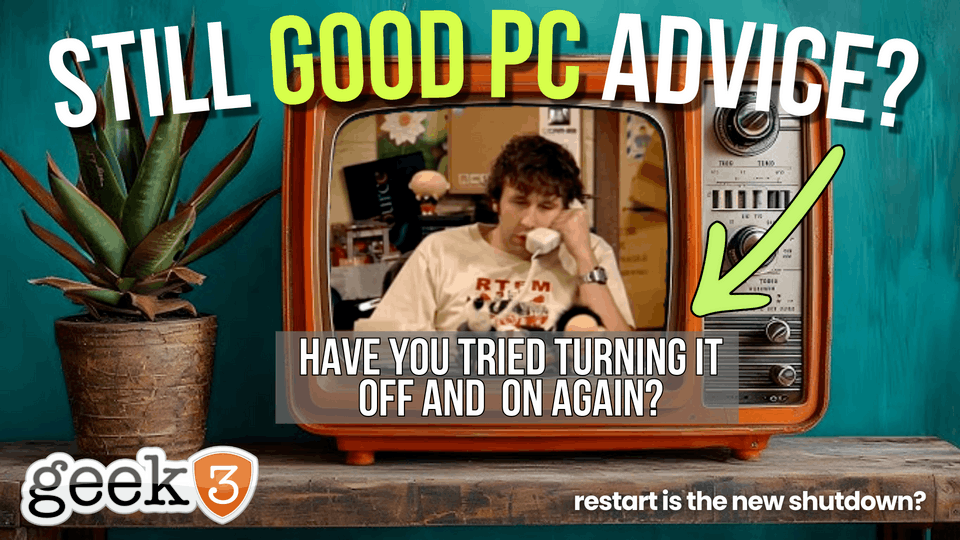
This advice became so reliable that it turned into a joke. Entire IT careers were built on the phrase “have you tried turning it off and back on?”
And then something changed.
Quietly.
The Day Windows Changed the Rules
Starting with Windows 8, Microsoft introduced a feature called Fast Startup. This behavior continues today in Windows 10 and Windows 11.
Fast Startup was designed to solve a very real problem.
Computers felt slow to boot.
Around that time, smartphones were exploding in popularity. You pressed a button, and the device was instantly usable. Laptops and desktops, by comparison, felt sluggish. Boot times were measured in minutes, not seconds.
Marketing departments wanted speed.
Reviewers wanted speed.
Users wanted speed.
Microsoft responded with Fast Startup.
What Fast Startup Actually Does
Here is where the confusion begins.
When you shut down a modern Windows computer, Windows does not fully shut down. Instead, it performs a hybrid shutdown.
In simple terms:
- You are logged out
- Applications close
- User sessions end
- The Windows kernel does not shut down
- Core system state is saved to disk
- The computer powers off
When you turn the computer back on, Windows reloads that saved kernel state instead of starting fresh.
Think of it like closing all the apps on your phone without actually rebooting it. Everything looks clean, but the underlying system never resets.
This is why the shutdown today behaves more like hibernation than a true power-off.
The Illusion of a Fresh Start
From a user perspective, shutdown feels complete.
The screen goes black.
The fans stop spinning.
The lights turn off.
It feels final.
But under the hood, Windows is simply pausing itself. When you power the machine back on, it resumes where it left off.
This gives the illusion of speed. And to be fair, it works very well at that.
Boot times are dramatically faster.
Older hardware feels snappier.
Users perceive improvement.
The tradeoff is clarity.
Restart Is the Exception
Restart behaves differently.
When you restart a Windows computer, Fast Startup is skipped entirely.
Everything unloads.
- Kernel memory clears
- Drivers unload and reload
- Services restart
- Hardware reinitializes
- Temporary glitches disappear
Restart is the only guaranteed way to force Windows to truly start over.
This is why restarting fixes issues that a shutdown never will.
It is not superstition.
It is not a habit.
It is not IT folklore.
It is how Windows is designed.
Why This Matters in the Real World
Modern computers are complicated.
Your average Windows machine is juggling:
- Printers
- Scanners
- USB devices
- Audio devices
- Bluetooth
- VPN connections
- Security software
- Cloud sync services
- Background updates
- Drivers from multiple vendors
Any one of these components can get into a strange state.
Fast Startup preserves that state.
Restart clears it.
This is why problems can linger for days or weeks without anyone understanding why.
A Real World Story That Proves It
Let me give you a real example because this happens constantly.
I once worked with a client who had a scanner problem. Not a consistent problem. Not something that happened every day. Just often enough to be irritating.
The scanner would show connected. The software would open. Everything looked normal. But scans would fail or hang.
After testing cables, drivers, software versions, and settings, one thing consistently fixed it.
Restart the computer.
One day, the client called and said my advice did not work.
She said she shut down and turned her computer back on six times.
Six.
I believed her. There was no reason not to.
But I also suspected the computer had not truly restarted even once.
The Moment of Truth
I asked if I could take a look remotely. She agreed.
I opened Command Prompt and typed a simple command.
systeminfo
About a dozen lines down, there it was.
System Boot Time.
The computer had last booted three weeks ago.
Three weeks.
Six shutdowns. Zero restarts.
At this point, she thought I was joking. That reaction is common. It sounds absurd.
So I explained what shutdown actually does now. Then I asked her to restart the computer.
One restart.
The scanner worked immediately.
No reinstall.
No driver update.
No cable swap.
Just a restart.
Why This Confuses So Many People
The problem is not the technology. The problem is expectations.
Windows uses words like Shutdown and Restart, but those words no longer mean what people think they mean.
Shutdown sounds definitive.
Restart sounds optional.
In reality, it is the opposite.
Shutdown preserves problems.
Restart clears them.
That inversion is the source of endless confusion.
Common Myths That Refuse to Die
Let us clear up a few misconceptions.
“My computer was off all night, so it restarted.”
Not necessarily. It probably resumed.
“I unplugged it.”
Still no. The saved state lives on disk.
“Sleep and shutdown are totally different.”
They are different, but not in the way people assume.
“I do not restart because I do not want to lose my work.”
Restarting prevents bigger problems later.
When Shutdown Is Still Useful
Shutdown is not useless. It still has a place.
- Ending the day
- Conserving battery
- Traveling with a laptop
- Storing a device
Just do not confuse shutdown with troubleshooting.
Shutdown is about convenience.
Restart is about repair.
How to Check Your Own Computer
If you are curious, you can verify this yourself.
Open Command Prompt and type:
systeminfo
Look for System Boot Time.
If that date surprises you, now you know why certain issues seem to linger forever.
Some people discover their computers have not truly restarted in months.
Why Microsoft Did This
It is important to say this clearly.
Microsoft did not do this to annoy users or IT professionals.
They did it to make Windows feel faster.
And it worked.
Startup times improved dramatically, especially on older hardware with traditional hard drives.
The confusion was an unintended side effect.
Fast Startup optimized speed at the cost of transparency.
Why IT People Sound Like Broken Records
This is why IT professionals so often ask the same question.
“Have you tried restarting?”
It is not laziness.
It is not dismissiveness.
It is experience.
They know that a restart resets things, shutdown does not.
Updating the Old Advice
It is time to update a classic phrase.
Old advice:
Turn it off and turn it back on.
New advice:
Restart it.
Say it out loud a few times. It still sounds wrong. That is okay.
Your computer does not care how it sounds.
A Small Habit With Big Payoff
This tiny distinction saves enormous amounts of time.
It reduces support calls.
It fixes issues faster.
It lowers frustration.
And it makes conversations with IT much shorter.
The New Year Takeaway
If your computer is broken, slow, glitchy, or just plain annoying:
Restart first.
Not later.
Not after five shutdowns.
Just restart.
Consider this your New Year 2026 IT epiphany.
Your computer will thank you.
And your IT person absolutely will.
